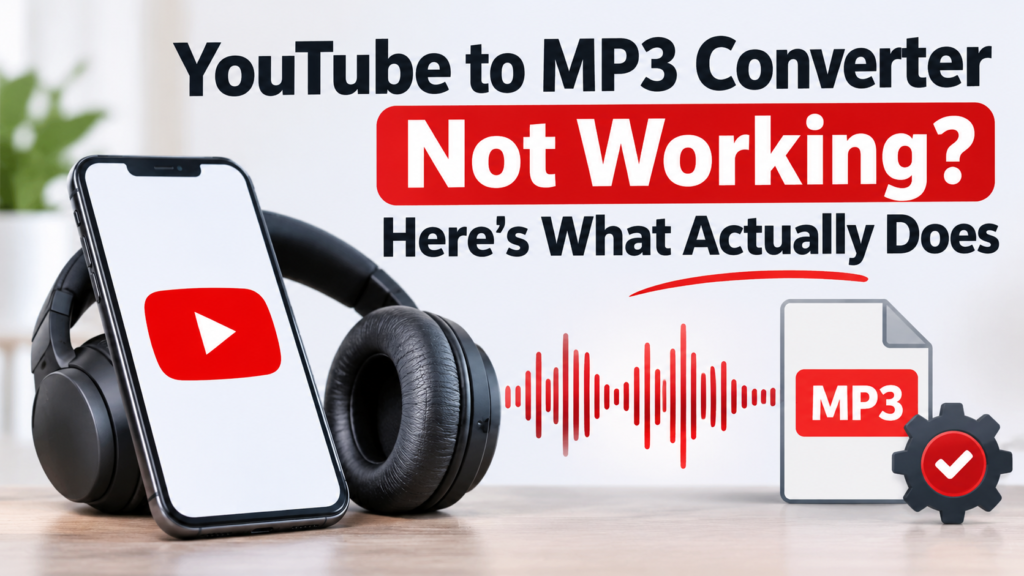
Have you ever tried converting a YouTube video into an MP3 file, only to find that the converter refuses to work? Perhaps the website keeps loading, the download button does nothing, or you receive an error message every time you try.
You’re not alone. Many people experience problems with online YouTube to MP3 converters. These tools can stop working because of website changes, browser restrictions, internet problems, security settings, or unsupported links.
The good news is that there are practical alternatives. In this guide, we’ll explain why YouTube to MP3 converters stop working, how to troubleshoot common problems, and which safer options you can use to access audio.
Quick Answer: Why Is Your YouTube to MP3 Converter Not Working?
A YouTube to MP3 converter may stop working for several reasons:
- The converter website is temporarily unavailable.
- Your browser is blocking downloads or pop-ups.
- The video link is private, restricted, or unavailable.
- Your internet connection is unstable.
- The website no longer supports the video format or link.
- Your device’s security settings are blocking suspicious downloads.
If the converter continues failing, avoid downloading unknown software or browser extensions. Instead, use YouTube’s official download options or convert an audio or video file that you own or have permission to use.
1. Why Do YouTube to MP3 Converters Stop Working?
Online converters depend on websites and services that can change over time. A tool that worked last month might not work today.
Here are some common reasons.
Website Problems
Some converter websites experience server errors, maintenance, or unexpected downtime. When this happens, the conversion process may never finish.
Browser Restrictions
Modern browsers block certain downloads, pop-ups, and potentially harmful website activity. Your browser may prevent a converter from opening a download window.
Unsupported or Unavailable Videos
Some videos are private, age-restricted, region-restricted, or otherwise unavailable. A third-party website may not be able to process the link.
Security Restrictions
Antivirus software, browser protection, or device security settings may block suspicious websites and downloads.
Internet Connection Issues
A weak or unstable connection can interrupt a conversion or prevent a download from completing.
2. How to Troubleshoot Common Converter Problems
Before looking for another tool, try these basic troubleshooting steps.
Check Your Internet Connection
Open another trusted website to confirm that your internet connection is working. If pages are loading slowly, restart your router or switch to a more stable connection.
Update Your Browser
An outdated browser may have compatibility or security problems. Install the latest available update for your browser and try again.
Check Download Permissions
Your browser may be blocking downloads automatically.
Open your browser’s settings and review its download permissions. Make sure you have enough storage space and that your device allows downloads from trusted sources.
Try a Different Browser
If a legitimate download is not working in one browser, testing another updated browser can help identify whether the issue is browser-related.
Avoid Suspicious Websites
Be careful with converter websites that display excessive advertisements, unexpected redirects, fake download buttons, or requests to install unknown applications.
Never enter personal information or install unfamiliar software just to convert an audio file.
3. What Actually Works? Safer Alternatives to YouTube MP3 Converters
If your converter is not working, the best solution depends on what you want to do with the audio.
Option 1: Use YouTube Premium for Offline Listening
YouTube Premium offers offline video downloads in supported locations and on supported devices.
This is useful if you want to listen to or watch content without an internet connection.
However, there is an important difference: YouTube Premium offline downloads are for playback within YouTube. They do not provide a standalone MP3 file.
Learn more through the from the best website
Option 2: Download Your Own YouTube Videos
If you uploaded the video yourself, YouTube provides an official download option through YouTube Studio.
The basic process is:
- Open YouTube Studio.
- Select Content from the menu.
- Find the video you uploaded.
- Open its options menu.
- Select Download, when available.
You can also use Google Takeout to export your YouTube data.
After downloading your own video, you can use a trusted media editor to extract its audio into MP3 format.
See the official YouTube instructions for downloading your uploaded videos.
Option 3: Get Audio Directly From the Creator
If you want the audio from someone else’s video, check whether the creator provides an official download.
Some creators share music, podcasts, interviews, and other audio through their websites or licensed platforms.
Getting the original audio from its creator is often the simplest way to obtain a good-quality file with permission.
Option 4: Convert a Video File You Own
If you already have a video file saved on your device and have the necessary rights to use it, you can convert that file into MP3 format.
A standard audio or video editing application can usually perform this task.
The general process is:
- Open a trusted media converter.
- Select your locally stored video file.
- Choose MP3 as the output format.
- Select your preferred audio quality.
- Export the converted file.
This method does not require entering a YouTube URL.
4. Is It Safe to Use Free YouTube to MP3 Websites?
Not every website offering free conversion is trustworthy.
Some sites display misleading download buttons, redirect visitors to unrelated pages, or encourage users to install unwanted extensions.
Before using any online audio tool, consider these safety tips:
- Avoid websites that request unnecessary personal information.
- Never install unknown browser extensions.
- Do not download unfamiliar executable files.
- Watch for fake download buttons and unexpected redirects.
- Keep your browser and security software updated.
- Leave websites that display suspicious warnings or behavior.
Also remember that YouTube’s Terms of Service restrict downloading content except where the service expressly permits it or you have the necessary permission from the rights holder.
Always check the applicable permissions before downloading or converting content.
5. How to Choose a Reliable MP3 Converter for Your Own Files
If you need to convert audio or video files that you own or are authorized to use, look for a reliable conversion application.
Consider these factors:
- Supported Formats: Choose software that supports common formats such as MP3, WAV, AAC, and MP4.
- Audio Quality: A good converter should let you select an appropriate bitrate without unnecessarily reducing sound quality.
- Simple Interface: Look for a straightforward application with clear import and export options.
- Security: Download software from its official website or a trusted application store.
- No Unnecessary Extras: Avoid tools that bundle unwanted applications, extensions, or advertising software.A reliable local converter is often a better choice than depending on an unfamiliar website.
6. Frequently Asked Questions
1.Why is my YouTube to MP3 converter not working?
It may be caused by website downtime, browser restrictions, an unavailable video, security settings, or an unstable internet connection.
2.Are free YouTube to MP3 converters safe?
Some websites may be risky because of misleading advertisements, suspicious redirects, and unwanted downloads. Be cautious and avoid installing unknown software.
3.Can YouTube Premium download music as MP3?
No. YouTube Premium supports offline playback within YouTube, but it does not provide standalone MP3 exports.
4.Can I convert my own YouTube videos to MP3?
Yes. You can download your own eligible uploads through YouTube Studio and then use a trusted media converter to extract the audio.
5.What is the best alternative when a converter stops working?
It depends on your goal. Use YouTube Premium for offline playback, download your own uploads through YouTube Studio, or obtain authorized audio files directly from their creators.
6.Can I convert an MP4 file into MP3?
Yes. If you own the file or have permission to convert it, a trusted audio or video converter can extract its audio and save it as an MP3 file.
Conclusion
A YouTube to MP3 converter not working can be frustrating, especially when you need audio for offline listening or another project. However, repeatedly trying unreliable websites is not always the best solution.
Start by checking your internet connection, browser settings, and device security. If the problem continues, choose an alternative that matches your needs.
YouTube Premium is useful for offline playback, YouTube Studio lets you download your own eligible uploads, and trusted media converters can turn authorized video files into MP3 audio.
The most important thing is to choose a safe method, protect your device, and respect the rights associated with the content you use.