Introduction
It is a waste of time to constantly switch between your computer and phone. You respond to a message on your phone, go back to your computer, and then pick up the phone once again because there’s another notification. It slows things down and destroys concentration.
Many consumers give PHONE Link a try, have connection issues, and give up. Usually, the software itself isn’t the problem. It’s out-of-date software, mismatched accounts, battery settings, or missing permissions.
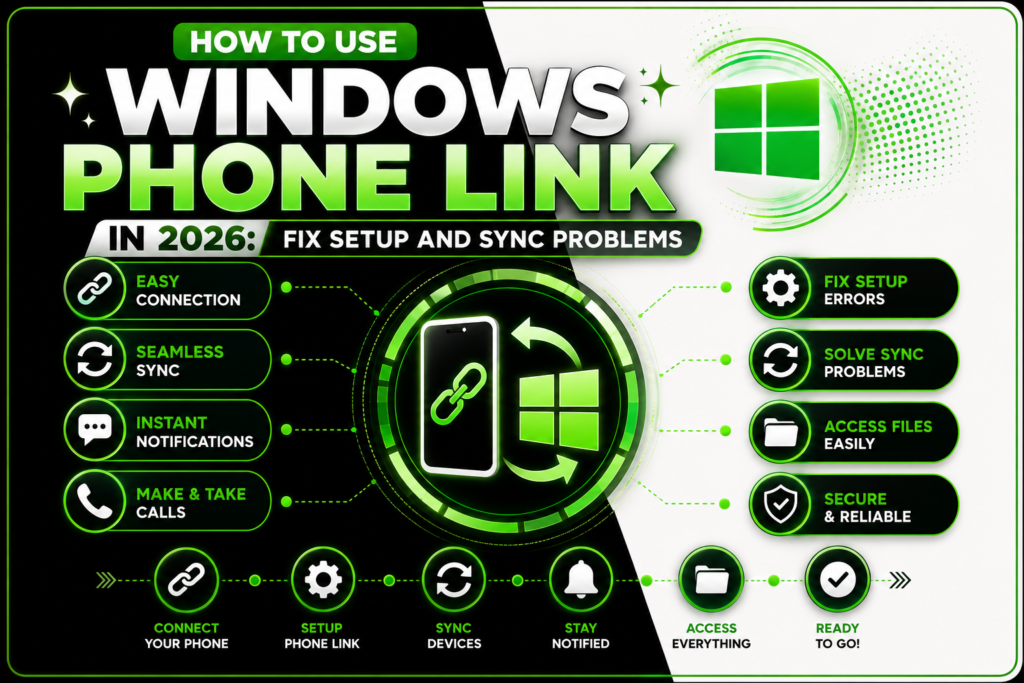
If you’re looking for How to Use Windows Link in 2026, you’re definitely more interested in a functional setup than general troubleshooting tips.
Fortunately, Microsoft’s phone integration has significantly improved. Once properly configured, messages, images, calls, alerts, and app access function very well.
This article explains the root causes of frequent issues, how to resolve them, and what happens once everything is operating as it should.
A Brief Response
In a nutshell, issues with Windows Link typically arise from missing permissions, mismatched accounts, or battery settings that prevent background syncing. Use the same Microsoft account, update both applications, and provide all needed permissions to resolve the issue. When they turn off battery optimization for the companion app, the majority of users notice improvements.
How can I first set up Phone Link correctly?
The software isn’t the main issue. The setup is not complete.
Because they want to complete as soon as possible, many users omit permits. Others unknowingly log onto many accounts. The connection only partially functions before abruptly cutting off.
Why It Occurs
Phone Link relies on many services cooperating:
- An account on Microsoft
- Syncing the background
- Access to notifications
- Permissions for the device
- Internet access
Ignoring any one of them leads to issues down the road.
The Solution
Adhere to this precise order:
- On your Windows computer, open Link.
- On your phone, install the companion app.
- On both devices, log into the same Microsoft account.
- Scan the computer’s displayed QR code.
- During setup, grant each request for permission.
Permit entry to:
- Notifications
- Contacts
- Messages
- Images
- Calls
The main reason for missing functionality is ignoring these permissions.
Typical Errors
- utilizing many Microsoft accounts.
- refusing to provide access during setup.
The outcome
Devices automatically connect and maintain synchronization in the background when setup is finished.
Why is Phone Link unable to establish a connection with my phone?
After installation, this is the most common complaint.
The application launches. The phone rings. After then, nothing occurs.
Why It Occurs
One of four factors is typically the cause of connection failures:
- The app is closed by battery optimization.
- Syncing is disrupted by Wi-Fi changes.
- The software is out of date.
- Background permissions were eliminated.
Nowadays, phones actively conserve battery life. They occasionally save too much.
The Solution
Try the following fixes in order:
- Restart both gadgets.
- Update the computer’s Phone Link.
- Update the companion app on your phone.
- Turn off the mobile app’s battery optimization.
- Verify that permissions for background activity are still active.
- Use the QR pairing procedure to reconnect.
| Problem | Likely Cause | Fix |
|---|
| Endless connecting | Battery optimization | Disable optimization |
| Missing notifications | Permission issue | Re-enable notification access |
| Random disconnects | Wi-Fi switching | Keep devices on stable networks |
| Pairing errors | Account mismatch | Verify Microsoft account |
Caution: Sometimes necessary services are blocked by public Wi-Fi networks.
The outcome
After background limitations are lifted, the majority of connection problems go away in a matter of minutes.
Why won’t my notifications and messages sync?
On your phone, you get SMS, but on your computer, you never see them.
Or alerts show up thirty minutes after they should.
Does that sound familiar?
Why It Occurs
Account permissions and notification access are two different things.
Because the request seems irrelevant, many users accept setup but deny notification rights.
Phone Link is unable to replicate messages or alerts without notification access.
The Solution
Manually verify the permissions for notifications.
- On your phone, launch the companion app.
- Access the permissions settings.
- Permit access to notifications.
- Permit background activities.
- If needed, turn off battery limitations.
Next, send yourself a message to test.
During testing, the majority of sync issues appear right away.
Expert Advice: Turn off notifications for unnecessary applications. It rapidly becomes boring to have every gaming warning on your PC.
The outcome
You may reply to messages right from your keyboard without touching your phone, and they arrive promptly.
[INTERNAL LINK: Windows notifications’ optimal productivity settings]
How can I use my PC to access images and make calls?
Because they believe setup is difficult, many users never utilize these functions.
It isn’t.
Why It Occurs
While internet syncing is used for photo access, Bluetooth is mostly used for calls. People believe the entire program is malfunctioning if one service functions and the other does not.
In actuality, distinct permissions are needed for each functionality.
The Solution
Regarding phone calls:
- Turn on Bluetooth for both gadgets.
- If asked, pair the devices.
- Permit the microphone.
- Make a quick call to test.
For images:
- Turn on permissions for photo access.
- In Phone Link, select the Photos tab.
- Await the appearance of recent photos.
Usually, recent images sync first.
Depending on the device settings, older photos could take longer.
Typical Errors
- The PC’s Bluetooth is turned off.
- During setup, photo rights were refused.
The outcome
You can drag pictures straight into emails, papers, or editing programs, and you can use your computer’s speakers to answer calls.
How to Increase Productivity with Windows Phone Link in 2026
For convenience, the majority of users install Phone Link.
Focus is the true advantage.
Why It Occurs
Attention is lost at every interruption.
monitoring a message becomes monitoring email, news alerts, and social media. Surprisingly quickly, ten seconds turns into ten minutes.
Context switching is decreased via Phone Link.
The Solution
Make deliberate use of the app.
Retain:
- Calls
- messages
- calendar alerts
- Important alerts
Turn off:
- Alerts for shopping games
- Notifications of promotions
- Updates on social media that are not urgently needed
Instead of using your computer as a billboard for notifications, use it as a control center.
Pro Tip: To keep messages at your fingertips, pin the phone link to the taskbar.
The outcome
You spend more time completing actual work and less time hopping between gadgets.
[INTERNAL LINK: Reducing digital
FAQ
Why can’t my Phone Link app connect?
This often occurs when the phone’s background activity is stopped by battery optimization. Restart both devices and turn off the companion app’s battery limitations. Rather than network difficulties, the majority of persistent connection troubles are caused by aggressive power-saving settings.
How can I make Phone Link alerts appear?
Notification access rights are nearly always deactivated when notifications are missing. Re-enable notification permissions by opening the companion app settings on your phone. Then, to make sure synchronization is successful, send yourself a test message.
Why does Phone Link disconnect at random?
The switching networks, going into aggressive sleep mode, or shutting off background operations are the typical causes of random disconnections. Most situations are resolved by exempting the app from battery management.
Why am I unable to use my PC to make calls?
Bluetooth connection and microphone permissions are prerequisites for calling functionality. Make sure both devices have Bluetooth turned on and that your PC can access microphone settings and audio devices.
How can I use Phone Link to transmit photographs more quickly?
During setup, make sure both devices are online and turn on photo permissions. Usually, the most recent images show up first. Initial synchronization of large libraries may take some time.
Is it safe to send private messages using Link?
Phone Link employs encrypted communication techniques and Microsoft account authentication. Strong passwords and two-factor authentication are used in the safest configuration for your Microsoft account.
Conclusion
The majority of link issues are not caused by technological issues. These are issues with setup.
Most problems are resolved by using the same Microsoft account, granting access, and turning off battery limitations.
Prioritize three things when studying How to Use Windows Link in 2026:
- On both devices, match the accounts.
- Accept each request for approval.
- Turn off aggressive battery optimization.
Most headaches are prevented by following those three procedures.
When everything is set up properly, calls may be made from your PC, messages arrive fast, and photo transfers are simple.
Right now, begin the permissions check.
Your solution is probably just a few clicks away.